How to Turn On Two-Factor Authentication with an Authenticator App
Last updated: October 6, 2026
Overview
Two-factor authentication with an authenticator app adds a second step to signing in: after your password, you enter a 6-digit code from an app like Google Authenticator or Authy. Turn it on in Profile › Security and privacy › Two-factor authentication by scanning a QR code with your app. It's available for accounts that sign in with an email and password, and your email address needs to be verified first.
📋 Before You Start
Your account signs in with an email and password, and your email address is verified.
Have your Mezzi password handy. If you haven't signed in recently, you'll be asked to confirm it.
You have an authenticator app installed on your phone, such as Google Authenticator or Authy.
🧭 How to Set Up an Authenticator App
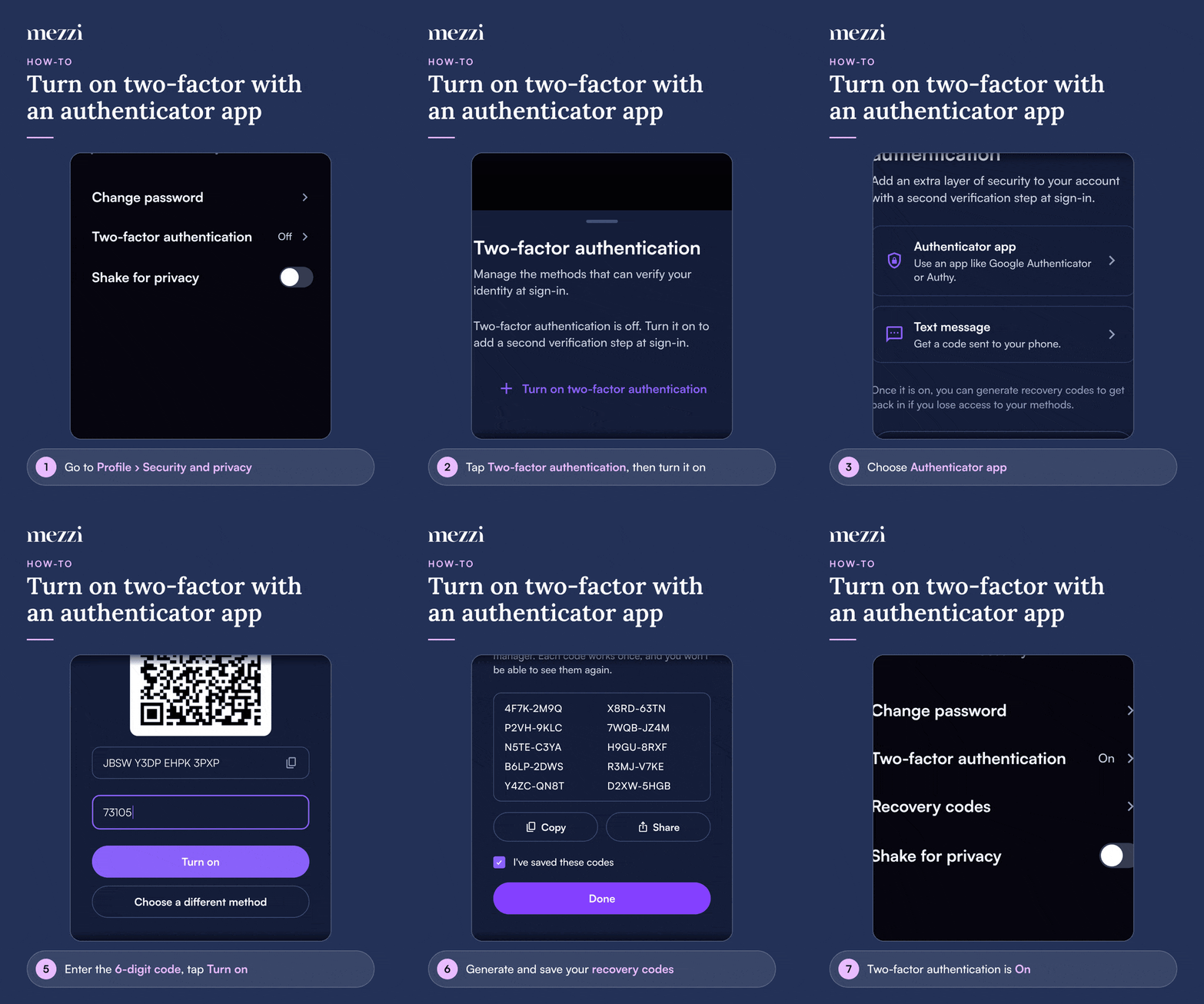
Go to Profile › Security and privacy and tap Two-factor authentication.
Tap Turn on two-factor authentication.
Choose Authenticator app.
If you're asked to confirm your password, enter it and tap Continue.
Open your authenticator app and scan the QR code on screen. If you can't scan it, enter the key shown into your app manually.
Enter the 6-digit code your app shows for Mezzi and tap Turn on.
When you see Two-factor authentication is on, tap Generate codes. Save your recovery codes with Copy or Share (Download on the web), tick I've saved these codes and tap Done.
🔐 Signing In with Your Authenticator App
Sign in with your email and password as usual.
On the Two-factor verification screen, open your authenticator app and enter the current 6-digit code for Mezzi.
Tap Verify.
If you've set up more than one method, choose which one to use, or tap Use a different method.
💡 Why This Matters
A stolen password alone isn't enough to get in. Someone would also need the device your authenticator app is on.
It works without mobile signal. The app makes codes on your phone, so you can sign in while traveling or anywhere a text message wouldn't reach you.
Save your recovery codes as soon as you turn it on. If you lose or replace your phone, a recovery code is how you get back into your account. Keep them somewhere safe, like a password manager. Each code works once, and you can't view them again after you close the screen.
Important Notes
Not seeing Two-factor authentication? It only appears for accounts that sign in with an email and password. If you sign in with Apple or Google, turn on two-step verification in your Apple or Google account instead.
Code not accepted? Codes change every few seconds. Enter the one currently showing in your app, and check that your phone's date and time are set automatically.
Getting a new phone? Move your authenticator app to the new phone before you reset or give away the old one, or add a second method first with Add another method.
Removing the app as a method: Removing your only method turns two-factor authentication off.
Lost your phone? On the verification screen, tap Lost access to your verification method? and then Use a recovery code.
🗨 Still Need Help?
Email help@mezzi.com, or text or call (415) 763-6997. Include the email address on your Mezzi account, the exact message you see, and whether you're on the web or the app. Never send us your password, verification codes or recovery codes.