How to Upload Files in Mezzi AI Chat (Like Your Tax Return)
Last updated: September 30, 2026
Overview
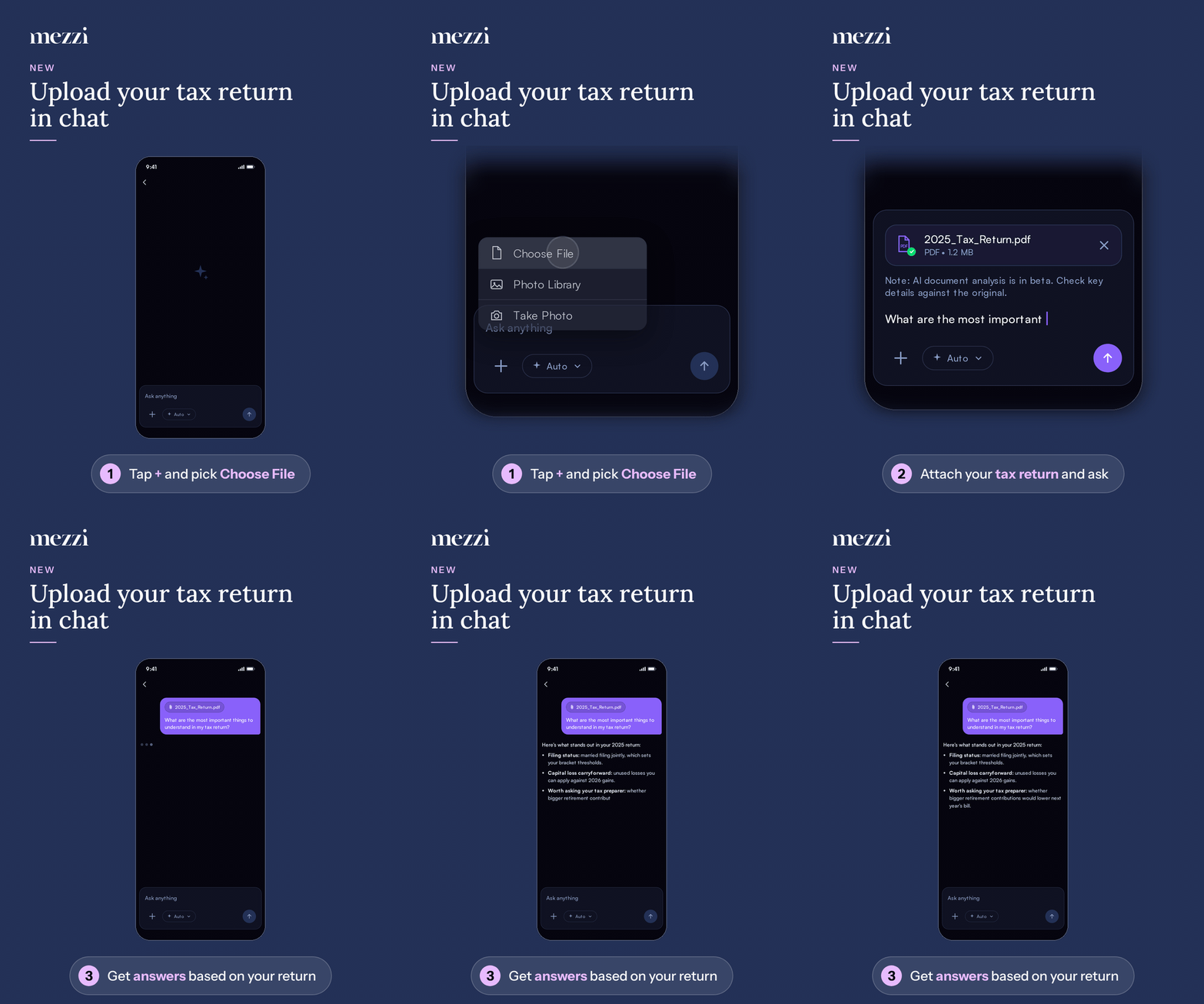
You can attach files, such as your tax return, directly to a Mezzi AI chat and ask questions about them. Tap + in the chat box, pick your file, type your question, and send. You can attach up to 5 files per message, each up to 50 MB, in formats like PDF, CSV, TXT, and common image types. Word and Excel files aren't supported yet.
🧭 How to Upload a File in Chat
This example uses a tax return, but the steps are the same for any supported file.
Open a chat with Mezzi AI and find the Ask anything box.
Tap + on the left side of the chat box.
On iPhone or Android: choose Choose File to pick a document such as your tax return PDF, Photo Library to pick an image, or Take Photo to snap a picture of a paper document.
On the web: your computer's file window opens. Select your tax return and open it. You can also paste a screenshot straight into the chat box with Cmd+V (Mac) or Ctrl+V (Windows).
Wait for the file to finish uploading. A progress bar runs along the bottom of the file card, and a green checkmark appears on the file icon when it's ready.
Type your question, for example: "What are the most important things to understand in my tax return?"
Send your message. The file appears above your question in the conversation, and Mezzi AI answers based on what's in it.
To remove a file before sending, tap the X on its card.
💡 Why This Matters
Attaching a document lets Mezzi AI work from your actual numbers instead of general assumptions. Some ways to use it:
Tax returns: ask what stands out, whether you have losses carried forward, or what to discuss with your tax preparer.
Statements and exports: upload a CSV or PDF from your brokerage and ask Mezzi AI to check figures or explain a transaction.
Screenshots: share what you're seeing on another site and ask about it.
Mezzi skips Social Security numbers and other government ID numbers when reading a tax return. See What Happens to My Social Security Number When I Upload a Tax Return?
Important Notes
Supported file types: PDF, CSV, TXT, RTF, Markdown (MD), JSON, XML, HTML, and images (JPG, JPEG, PNG, WEBP, HEIC, HEIF). Other formats, including Word (.docx) and Excel (.xlsx), show Unsupported file type. To share a spreadsheet, export it as a CSV or PDF first.
Limits:
Up to 5 files per message. Once you reach it, the + shows Attachment limit reached.
Each file can be up to 50 MB.
There's also a daily upload limit, and a short wait if you upload many files in quick succession.
Double-check key details: AI document analysis is in beta. Compare important figures against your original document.
Question allowance: if you've used your available questions on the free plan, the + is dimmed along with the rest of the chat box until your allowance is back.
If an upload doesn't work
Unsupported file type. Save the file as one of the supported types above and try again.
File must be 50 MB or smaller. or File too large. Try a smaller one. Split the document or upload fewer pages.
Too many uploads. Wait a minute. Wait a minute, then tap retry on the file card.
Daily limit reached. Try a smaller file. Try a smaller file, or try again tomorrow.
Cannot read that file. Pick it again. Remove the file and select it again.
Upload timed out. Please try again. or Upload failed. Please try again. Check your connection and tap retry.
🗨 Still Need Help?
Email help@mezzi.com with the file type, its approximate size, whether you're on iPhone, Android, or the web, and a screenshot of any error on the file card.