Can I Export or Download My Data?
Last updated: October 30, 2026
Overview
Not as a file. Mezzi doesn't currently offer an export or download of your data, so there's no CSV, Excel or PDF file of your holdings, transactions, balances or net worth history, on the iPhone app or on the web. What you can do is copy what Advisor shows you: a whole chat, a single answer, or a table, and paste it into a document or a spreadsheet such as Excel or Google Sheets.
📌 What You Need to Know
No file export. There's no export or download button for your accounts, holdings or transactions anywhere in Mezzi.
Advisor can't create a file for you. If you ask Advisor for a Word document or an Excel sheet, it can't produce one and may offer text or code to paste instead. Copying the answer is the simpler route.
Tables copy cleanly into a spreadsheet. Any table Advisor shows has its own copy icon, and it pastes into Excel or Google Sheets as rows and columns. If you want a list of your data, ask Advisor to lay it out as a table first, for example: "Show my holdings across all my accounts as a table with the ticker, shares, value and account."
Your original records stay at your institutions. Mezzi only reads your accounts, so statements, transaction history and tax documents are always available to download from your brokerage, bank or plan administrator.
You can work with your Mezzi data in Claude or ChatGPT. If you connect Mezzi to either one, you can ask it about your accounts there, and that tool handles the data under its own terms. See Mezzi to ChatGPT and Claude (MCP).
🧭 How to Copy a Chat or Table from Advisor (iOS)
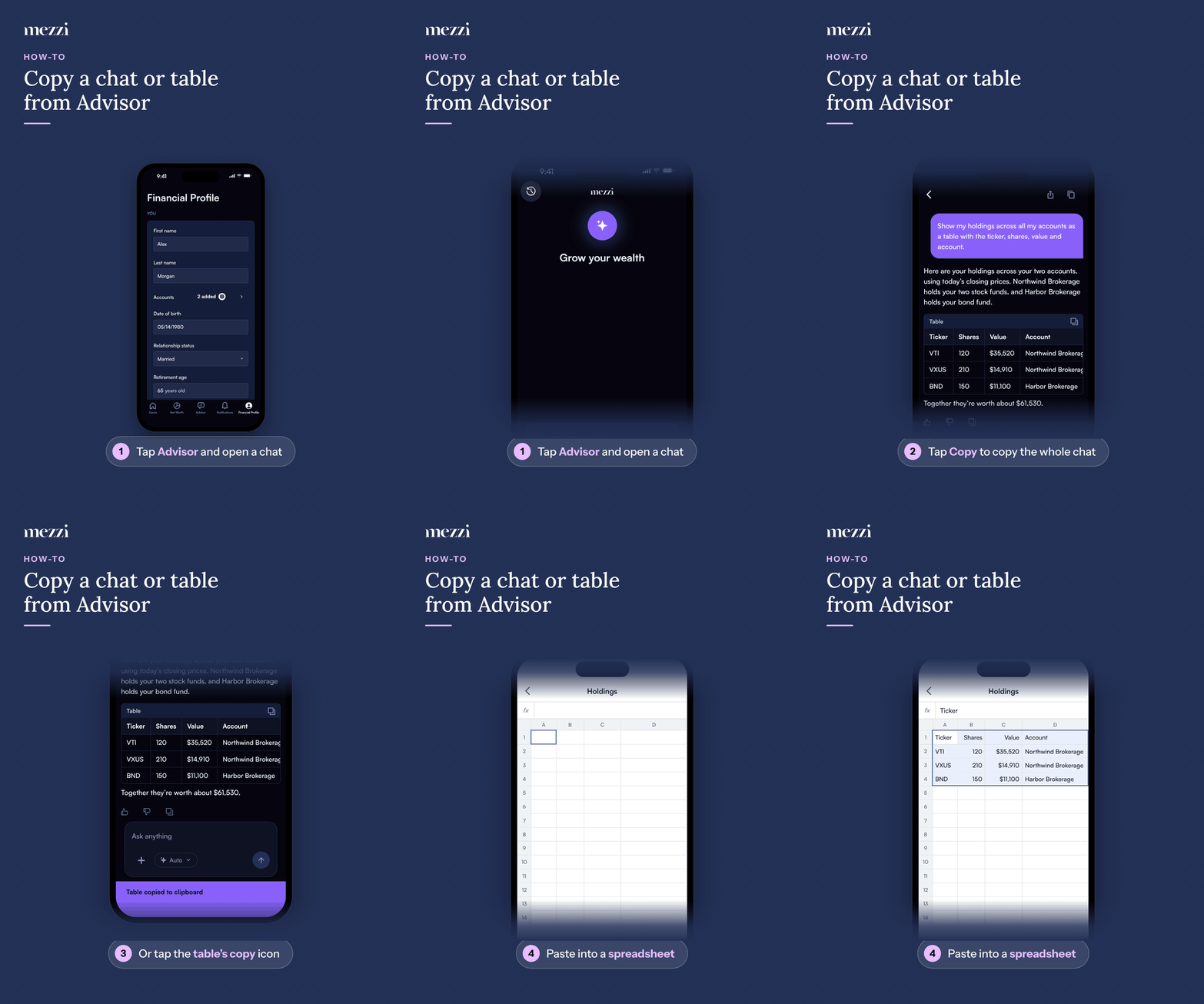
Tap Advisor in the bottom bar and open the conversation you want.
To copy the whole chat, tap the Copy icon at the top of the chat. You'll see Copied at the bottom of the screen.
To copy just one table, tap the copy icon in the bar above the table, next to Table. You'll see Table copied to clipboard.
Paste it into Notes, a document or a spreadsheet app. To send the chat instead, tap the Share icon at the top of the chat to open your phone's share options.
🧭 How to Copy a Chat or Table from Advisor (web)
Open the conversation with Advisor you want.
To copy the whole chat, click the Copy icon at the top of the chat. You'll see Copied at the bottom of the screen.
To copy just one table, click the copy icon in the bar above the table, next to Table. You'll see Table copied to clipboard.
Paste it into Excel, Google Sheets, Word or Google Docs. To email the chat instead, click the Share icon at the top of the chat.
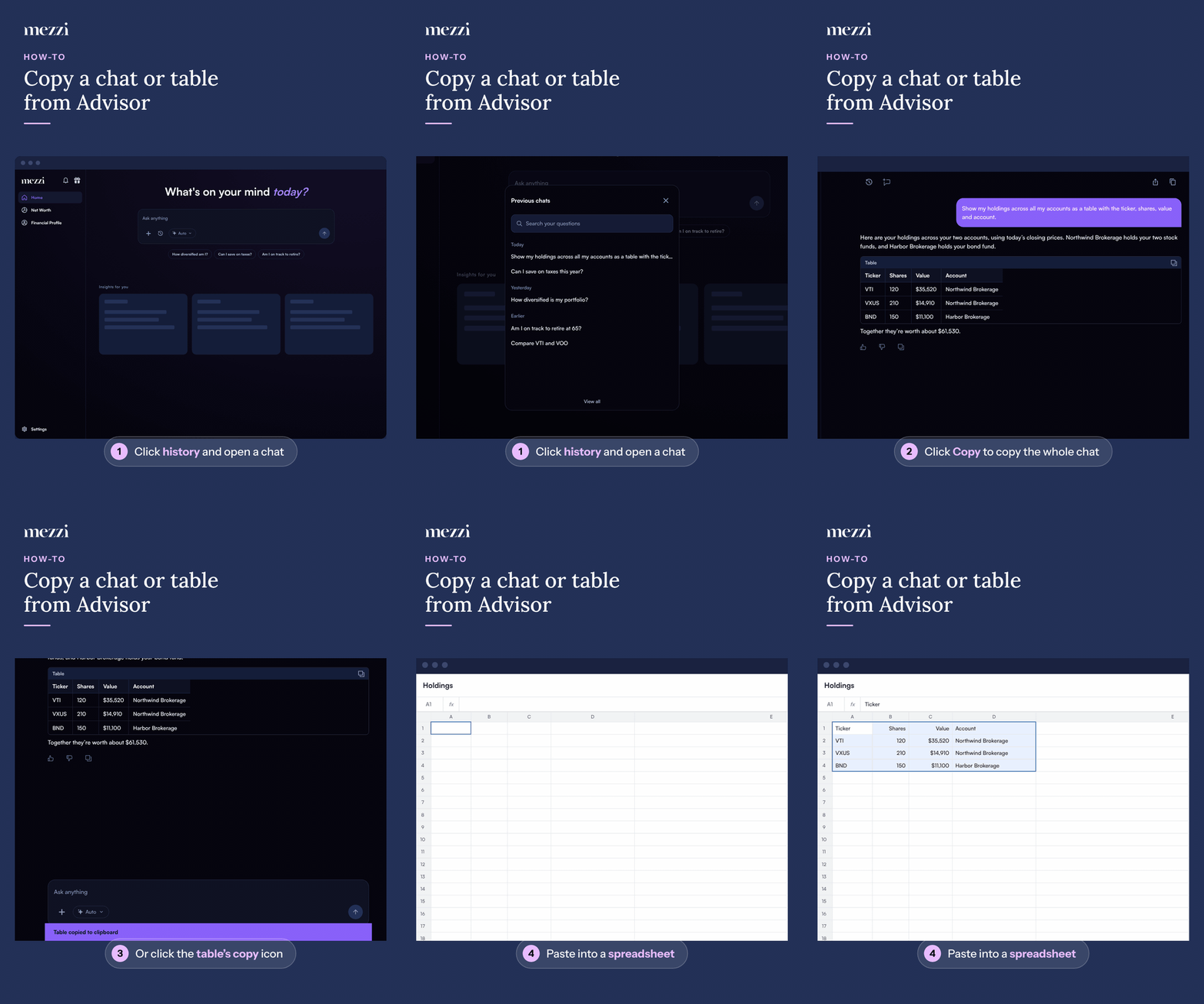
The Copy and Share icons appear once Advisor has answered at least one question in the chat. A copied chat starts with the date of the chat and labels each message with who sent it. To copy a single answer, use the Copy icon under that response, next to the thumbs up and thumbs down. For printing and emailing a chat, see How to Copy, Print, or Email an Advisor Chat.
Important Notes
Deleting your account? Because there's no export, copy anything you want to keep first. Deletion is permanent. See How to Delete Your Mezzi Account and Data.
Two-factor recovery codes can also be saved outside Mezzi: when you set up an authenticator app, you can copy them, download them as a text file on the web, or share them on the iPhone app. See How to Turn On Two-Factor Authentication with an Authenticator App.
For how Mezzi protects the data it holds, see Is My Data Secure?
🗨 Still Need Help?
Email help@mezzi.com with what you'd like to get out of Mezzi and what you plan to use it for, such as a spreadsheet or a meeting with your CPA, and we'll help you find the best way to do it.