How to Add and Manage Documents in Mezzi
Last updated: November 6, 2026
Overview
Mezzi keeps your financial documents (statements, tax forms, pay stubs and tax returns) in Documents on your Financial Profile, so Advisor can use them in every chat, not just the one you attached them to. Add a file with + Add document, or attach it in chat and it's kept there too. Mezzi reads each file once, keeps the figures that matter, and deletes the file itself. Free and Advisory members keep up to 5 documents; Concierge keeps as many as you like.
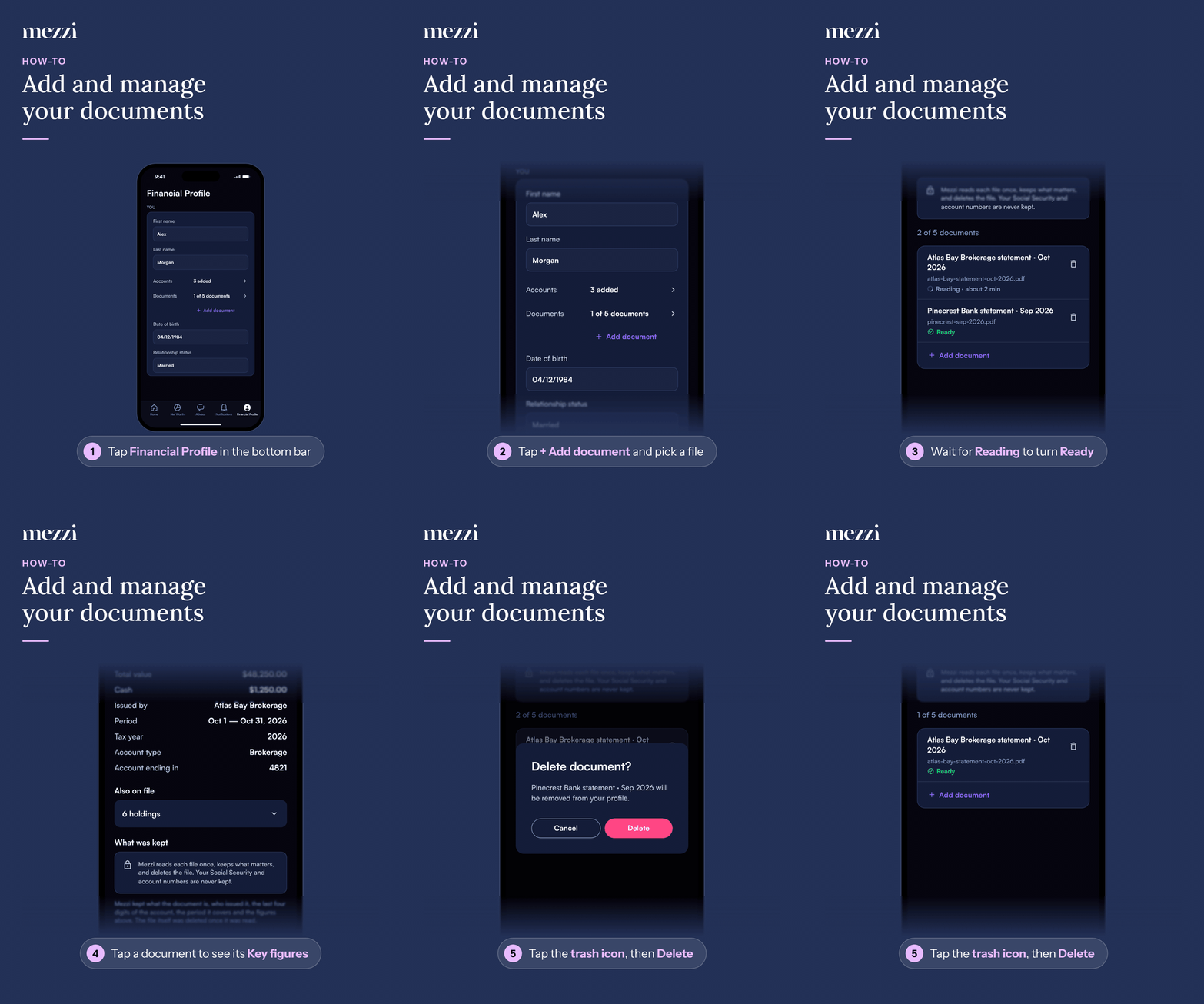
🧭 How to Add and Manage Documents (iOS)
Tap Financial Profile, the last tab in the bottom bar.
Under YOU, tap + Add document below Documents and pick the file from Files. To see what's already there, tap the Documents row instead.
Wait while the file reads. Its row shows Reading · about 2 min, then Ready.
Tap a document to see its Key figures, What was kept and anything Also on file, such as holdings or transactions.
To remove one, tap the trash icon next to it, then tap Delete on Delete document?
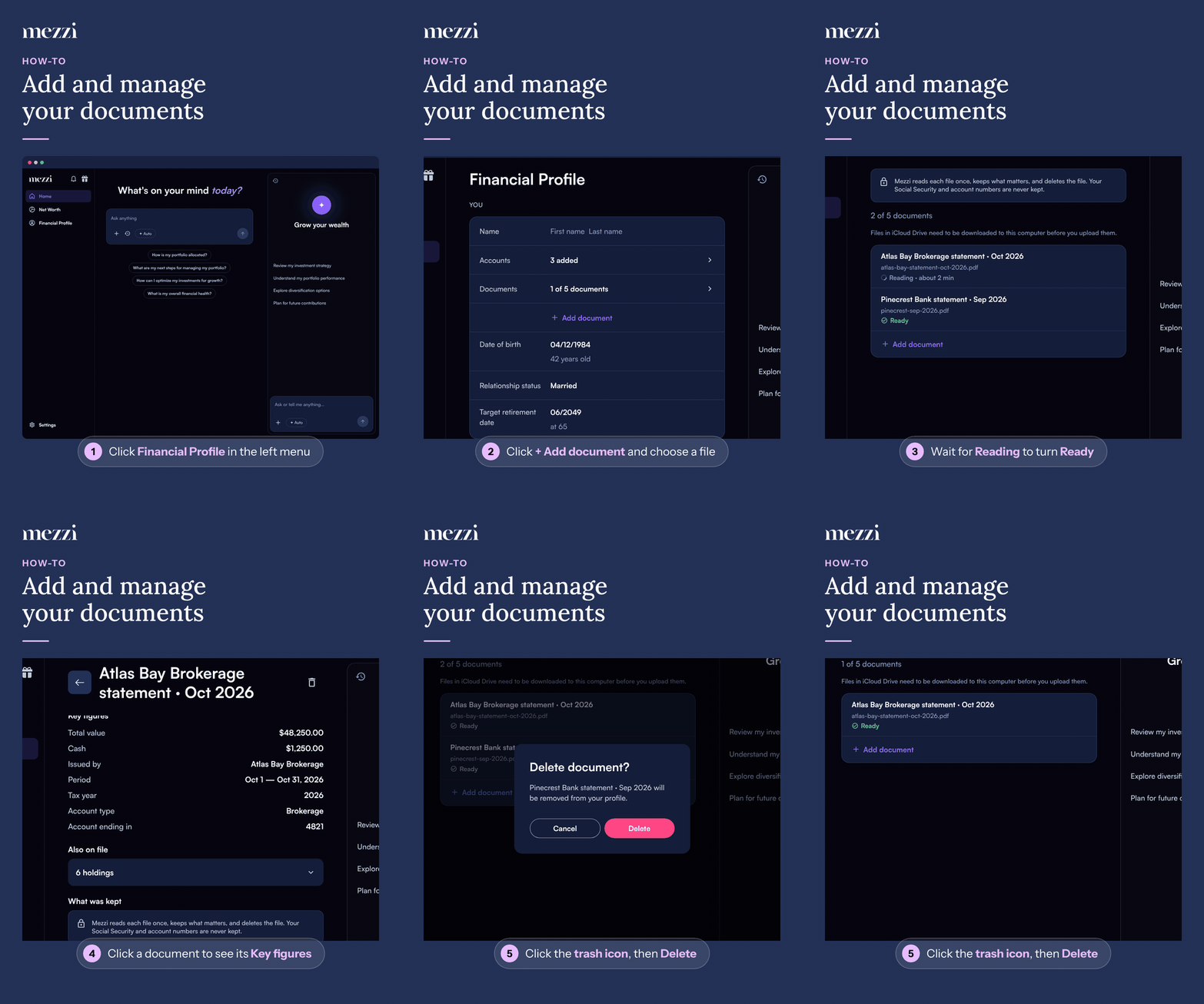
🧭 How to Add and Manage Documents (web)
Click Financial Profile in the left menu.
Under YOU, click + Add document below Documents and choose the file. To see what's already there, click the Documents row instead.
Wait while the file reads. Its row shows Reading · about 2 min, then Ready.
Click a document to see its Key figures, What was kept and anything Also on file, such as holdings or transactions.
To remove one, click the trash icon next to it, then click Delete on Delete document?
Once a document shows Ready, Advisor can use it in any chat. Try asking "What does my latest statement show?" or "Please fill out my Financial Profile using my tax return." When Advisor suggests profile changes, it shows them in a review card first, and nothing changes until you select Save.
💡 Why This Matters
Files attached in chat are kept too. When you attach a file in Advisor, Mezzi also adds it to Documents (while you have room), so you don't have to upload it twice. See How to Upload Files in Advisor.
Not in your accounts yet. A statement for an account Mezzi doesn't track shows this label. To track it, add the account with AI document scan (web) or Upload brokerage statement (iOS) under Connect new account › Brokerage or bank, or add it manually.
Important Notes
What's kept: what the document is, who issued it, the last four digits of the account, the period it covers, and its key figures. Your Social Security and full account numbers are never kept. See What Happens to My Social Security Number When I Upload a Tax Return?
File types: PDF, CSV, TXT and common image types such as JPG, PNG and HEIC, up to 50 MB each. Word and Excel files aren't supported; save them as PDF or CSV first.
Limit: the count reads like 4 of 5 documents. Files Mezzi couldn't read don't count. If a file wasn't saved, see Why Didn't Mezzi Keep My Document?
iCloud Drive on a Mac: download the file to your computer first. Files that are only in iCloud can't be read from the web.
AI document analysis is in beta. Check important figures against your original.
🗨 Still Need Help?
Email help@mezzi.com with the document's name as it appears in Documents, whether you're on iPhone or the web, and a screenshot of what you see.