Where to Add, Refresh, Repair, Rename, or Remove Accounts in Mezzi
Last updated: October 30, 2026
Overview
Everything you can do with your accounts lives on one screen: Financial Profile → Accounts, titled Add or edit accounts. The Manage button next to each institution refreshes, repairs or deletes that connection, and the ⋯ menu next to each account edits its name, hides it or deletes it. To add a new account, use Connect new account at the bottom of the same screen.
🧭 How to Manage Your Accounts (iOS)
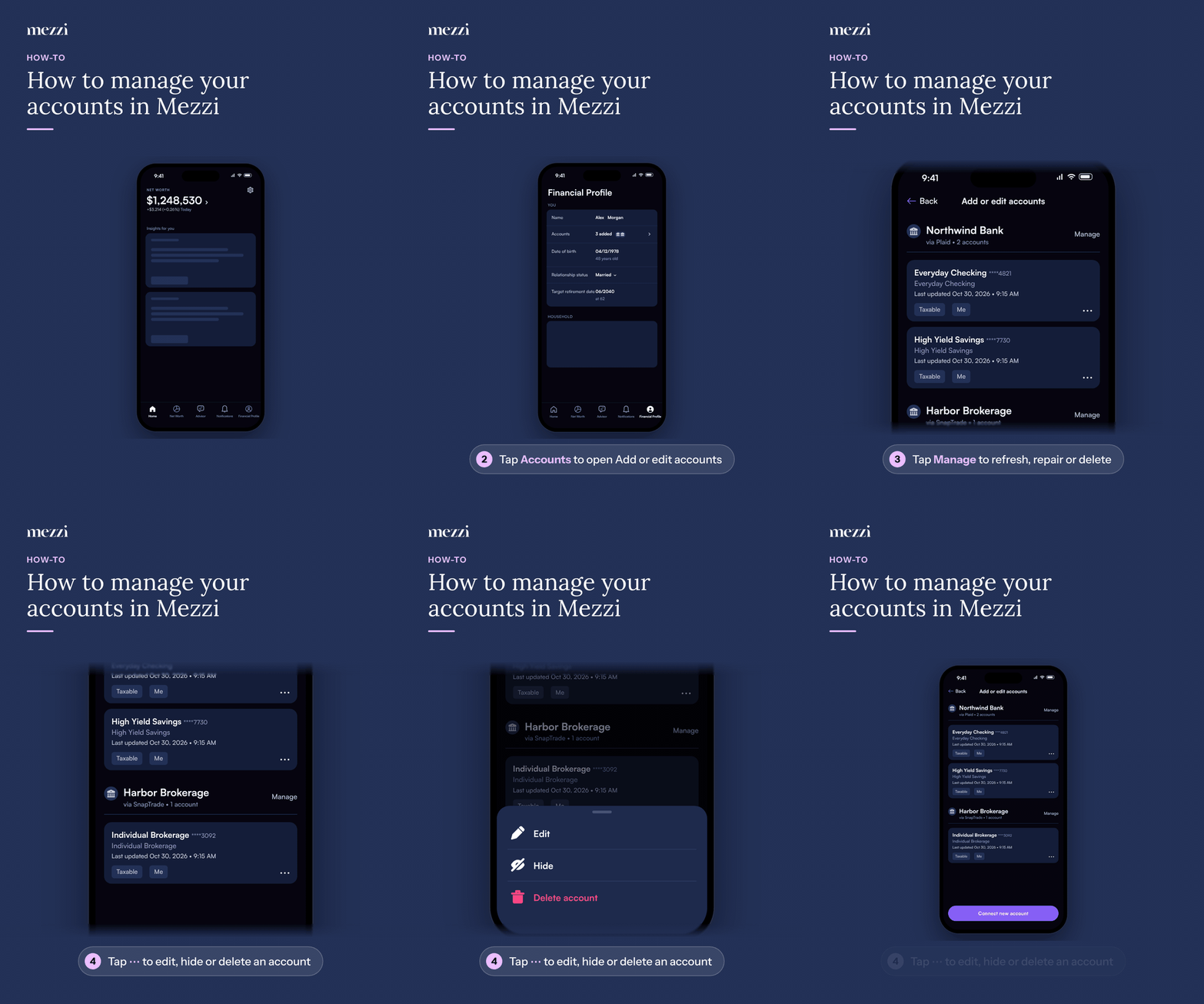
Tap Financial Profile, the last tab in the bottom bar.
Tap Accounts to open Add or edit accounts.
To work on a whole connection, tap Manage next to the institution, then choose Refresh connection, Repair all accounts or Delete institution.
To work on one account, tap ⋯ next to it, then choose Edit (change the Display name and other details), Hide or Delete account.
🧭 How to Manage Your Accounts (web)
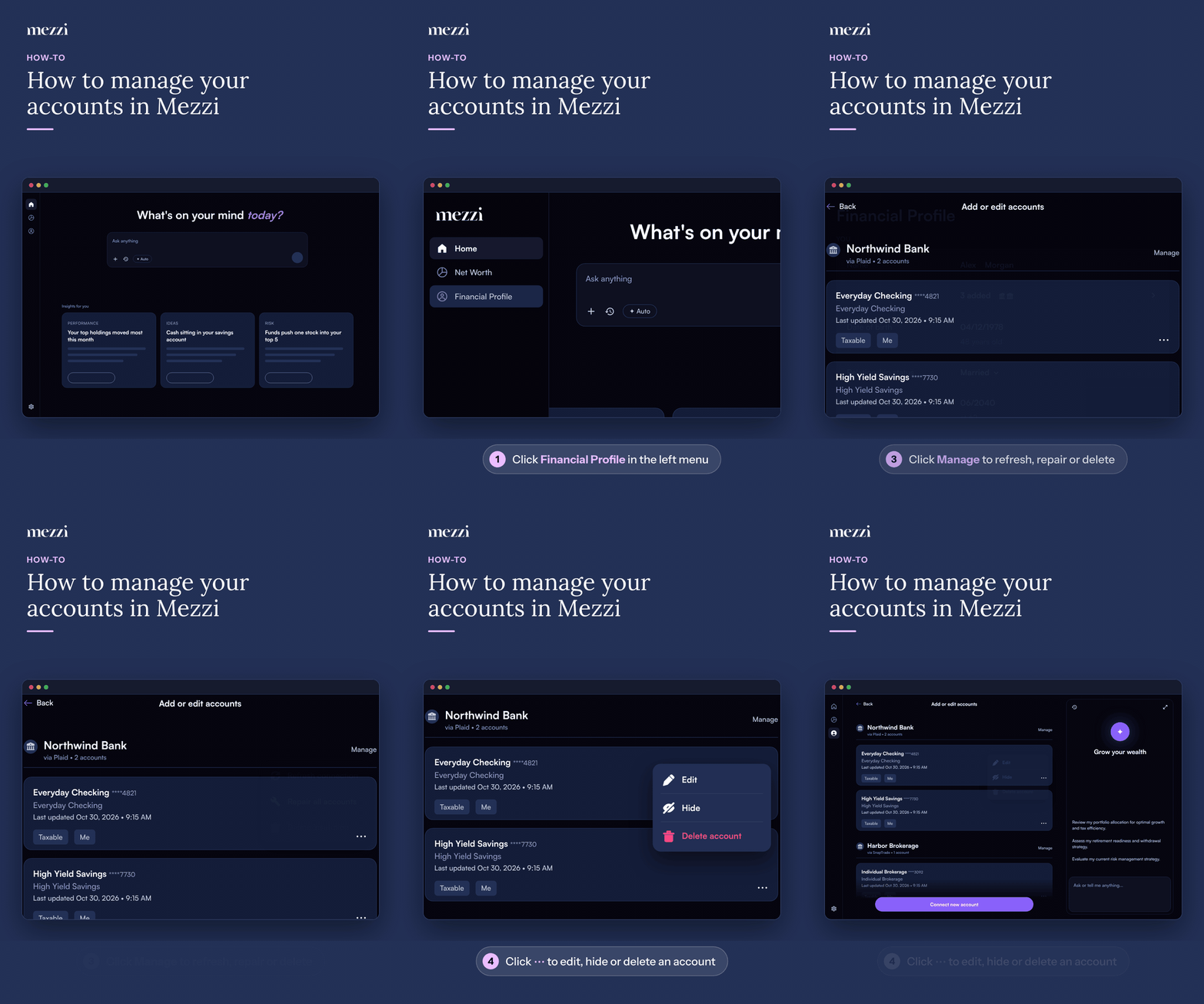
Click Financial Profile in the left menu.
Click Accounts to open Add or edit accounts.
To work on a whole connection, click Manage next to the institution, then choose Refresh connection, Repair all accounts or Delete institution from the menu.
To work on one account, click ⋯ next to it, then choose Edit (change the Display name and other details), Hide or Delete account.
Renames, hides and deletes apply to Net Worth and Advisor once you confirm them. A refresh asks your institution for the latest data, which can take a few minutes to come through.
💡 Why This Matters
Each action has a guide with the details:
Refresh connection works once an hour per connection. See why you can't refresh more than once an hour.
Repair is for connections that stopped syncing. See how to repair a broken connection.
Edit changes the name and details Mezzi shows. See how to edit an account's name or details.
Hide keeps the account connected but leaves it out of your totals; Delete removes it. See how to hide and unhide accounts and removing an institution vs. a single account.
Important Notes
Homes, vehicles, loans and other assets you added yourself are listed under Manual Accounts on the same screen.
Advisor can't walk you through the app's screens yet, so use this page and the help center for click-by-click steps.
🗨 Still Need Help?
Email help@mezzi.com with what you're trying to do and the name of the account or institution.